Build courses with confidence.
A comprehensive guide to mastering the professional agility toolset in NextMap.
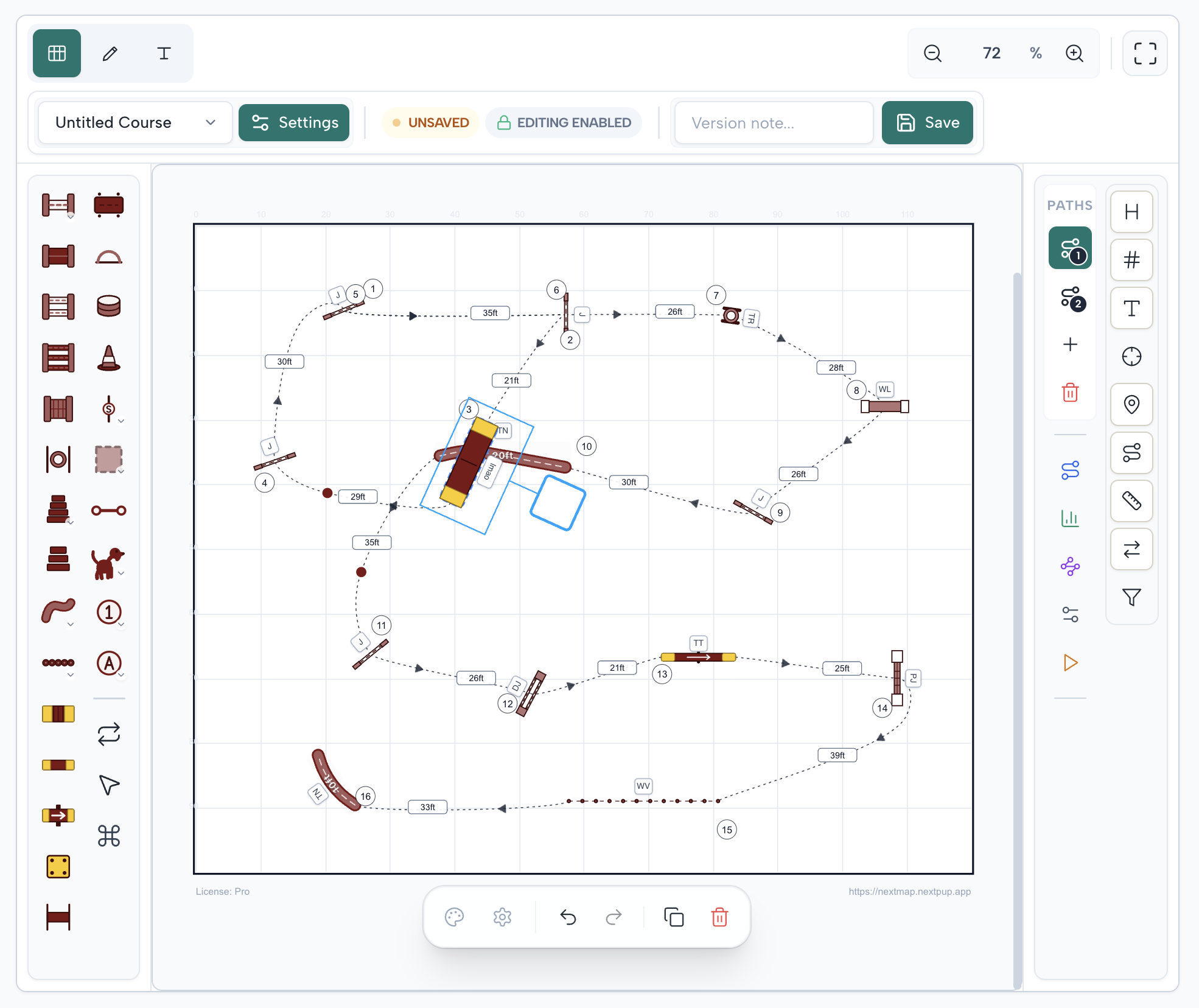
Real-time vector rendering engine
Master the Shortcuts
Designed for power users. Use these keyboard combinations to speed up your workflow and design complex courses with ease.
Key combinations require a physical keyboard. On touch screens, use the buttons and long-press gestures.
Canvas Control
Placement Tools
Canvas Options
View Toggles
System & View
Path Tools
Detailed Playbook For Every Part
Use this section as a practical runbook. Each part explains what to do, in order, and what to verify before you move on.
Feature rollouts (application admins)
Application admins manage staged rollouts from Profile settings → Feature management. Workspace roles do not grant this access.
Steps
- 1Choose Off to deny everyone, Whitelist for selected eligible users, or Global for all eligible users.
- 2Search users and grant or revoke whitelist access. Grants are retained when modes change.
Readiness Checks
- Verify the current mode and whitelist after saving. Revocation prevents new gated actions; the reserved payment key does not add payments.
Course Setup
Start with accurate field settings so every placement and measurement downstream stays reliable.
Steps
- 1Create or open a course, then confirm the measurement system and field dimensions before placing any obstacles.
- 2Set course metadata first (name, class level, notes) so exports and share links are already context-complete.
- 3Adjust canvas zoom and fit so the full ring is visible and you can place start points with clean spacing.
- 4Save an initial baseline version immediately; use this as a safe restore point before major edits.
- 5Screen readers can read field dimensions, obstacles, and paths in the Course map summary. Use Tab or Shift+Tab to navigate controls; Escape closes the current dialog and returns focus.
Readiness Checks
- Field bounds, units, and title match the event brief.
- Initial version saved and visible in version history.
Obstacle Layout
Block in obstacle positions first, then refine spacing and angle relationships with snapping tools.
Steps
- 1Place all required obstacle types in rough order from start to finish without fine tuning.
- 2Switch to precision pass: nudge with keyboard shortcuts, rotate where needed.
- 3Use continuous placement for repeated sequences to maintain rhythm and visual consistency.
- 4Mirror only after checking one side is correct; then validate lane clearances and approach lines.
Readiness Checks
- Every required obstacle exists once and is positioned inside legal field bounds.
- Primary lines are readable at full-canvas zoom without overlaps that obscure handling intent.
Equipment Inventory
Location templates store field size, location, and the available equipment for a venue as an inventory — a list with counts, not a fixed placement on the map.
Steps
- 1When saving a location template, add each available piece of equipment and set its quantity. For jumps, set the bar length/size; for tunnels, set the tunnel length.
- 2Edit or remove equipment any time on the location template — the inventory is independent of where obstacles sit on the map.
- 3To reuse a template, choose "Load Location" to apply only field size and location (the original behavior, no equipment), or "Load with Equipment" to also import every available item.
- 4Loading with equipment drops the whole inventory onto the canvas lined up neatly in a grid by the side of the field; drag and arrange the items into your course afterward.
Readiness Checks
- The equipment list reflects the real inventory and counts, with bar lengths on jumps and tunnel lengths on tunnels.
- "Load Location" changes only field/location; "Load with Equipment" also adds the full lined-up inventory, ready to arrange.
Path And Flow
Define handler intent and dog line using path tools, waypoints, and analysis overlays.
Steps
- 1Create the main path in running order and verify each anchor snaps to the intended obstacle.
- 2Add waypoints only where shape control is needed; avoid overfitting paths with unnecessary points.
- 3Open path analysis and review segment lengths, total distance, and obvious acceleration/deceleration spikes.
- 4If multiple strategies exist, add alternate paths and label them consistently for briefing clarity.
- 5For Hoopers barrels, drag each number outside the barrel on the side the dog should pass. The path runs through that number, so repeated visits to the same barrel can use different sides. New numbers placed on a barrel start outside it. Use waypoints to refine the approach and exit.
Readiness Checks
- Main and alternate paths are labeled, non-overlapping, and easy to distinguish.
- Distance overlays match expected handling plan and do not reveal accidental detours.
Manual Drawing
Add judge, handler, and annotation lines without giving up usable canvas space on a phone or tablet.
Steps
- 1Choose Draw from the obstacle panel (D). On phones and tablets, the properties panel starts collapsed; expand it only when you need to change line appearance.
- 2Drag with a finger, Apple Pencil, or mouse for a freehand line. For a straight touch line, tap the start and then the end; the start anchor stays visible between taps.
- 3Set colour, line style, thickness, point spacing, arrowhead, and length display before drawing the next line.
- 4Close Draw or press Escape to select a line, reshape its point handles, or delete it from the canvas.
Readiness Checks
- Touch and Apple Pencil input create the intended line without the properties panel covering the drawing area.
- Line colour, thickness, arrowhead, and optional length remain readable at the intended phone, tablet, and print sizes.
Snooker Numbering
A Snooker course is numbered by colour rather than by counting upward, so it has its own set of tools and the ordinary number and letter tools are switched off.
Steps
- 1Open Snooker Modes on the obstacle toolbar: the red marker, the colours 2 to 7, and the start and finish markers all live in one list.
- 2Arm the red tool and click each red jump. A red scores one point through its own marker rather than by being numbered, which is why the colours start at 2 and there is no 8.
- 3Arm a colour and click the obstacles that score it, in the order the dog takes them. Clicking an obstacle that already carries the colour removes it again.
- 4Several obstacles on one colour become a combination — 7a, 7b — with the letters derived from the count. Number each route option as its own path when a map offers more than one.
Readiness Checks
- Every red is marked, and each colour from 2 to 7 has at least one obstacle so the closing can be run.
- Combination elements are a complete run of letters performed together, with no bare number left beside a lettered one.
Tunnel Shape Editor
Use tunnel shaping when default geometry is not enough; prioritize smooth entries and realistic curvature.
Steps
- 1Open shape editing only after tunnel endpoints are finalized in the main layout.
- 2Move control nodes in small increments and keep centerline continuity visible while sculpting bends.
- 3Use angle and diameter guidance to avoid unrealistic kinks that break running flow.
- 4Exit shape mode and validate approach and exit lines from surrounding obstacles at normal zoom.
Readiness Checks
- Tunnel curve is smooth with no abrupt inflection that conflicts with handling path.
- Entry and exit align with nearby obstacle approach distances.
Course Inspiration
Two dice buttons on the obstacle toolbar roll a starting point when the blank field is the hard part: one places equipment, the other numbers what is already there.
Steps
- 1Open Random Obstacle Layout to roll a layout. Set how many of each obstacle you want, then place them; they land clear of the field edges and of each other so the result can be numbered afterwards.
- 2Open Random Running Order to number the obstacles on the field into a random course. Set the minimum and maximum path distance between consecutive obstacles first — the layout roll follows the same range.
- 3Ask for more numbers than the field can carry and the missing obstacles are placed for you. Jumps and tunnels can be numbered twice, so the capacity is higher than the obstacle count.
- 4Rolling over an existing running order replaces it. You are asked to confirm, and the result can be undone — then refine it in path mode rather than re-rolling until it is perfect.
Readiness Checks
- The rolled layout has the equipment mix the class actually needs, not just the standard mix.
- The running order has been walked in path mode and adjusted; the roll is a draft, not a finished course.
Styling And Visibility
Each path has one number style: fill, text, border, shape, font size and outline. Select a number to edit its whole path in Properties, or open Path settings in the tray below the canvas.
Steps
- 1Set one fill, text, border, shape, font size and outline style for all numbers on the active path.
- 2Tune path line style, arrows, and waypoint visibility for the audience of the current export.
- 3Enable short labels or coordinates only when they add decision-making value for the target audience.
- 4Review the full canvas at zoomed-out and zoomed-in levels to confirm no text collisions.
Readiness Checks
- Numbers, labels, and lines stay legible on both bright and muted theme backgrounds.
- Only necessary overlays are enabled to avoid visual noise.
Metadata And Branding
The title block and logos are what make an exported map readable as an official document rather than a sketch.
Steps
- 1Fill the map metadata — event, class, level, judge, course designer, approver, venue, city, date — and add notes for handlers and ring crew.
- 2Leave original author alone: it is a locked copyright credit recorded when the course was created, imported, or remixed, and it travels with every copy. Course designer is the editable field that prints on the map.
- 3Upload logos once to the Media Library (2 MB per image, 100 MB in total), then add them to the course and set position, size, and opacity per logo. Branding logos are a Pro feature.
- 4Decide whether the organization, class, and level print on the map — that switch lives with the governing-rules selection, not with the export.
Readiness Checks
- The title block reads correctly at print size, and the designer field says what you want the map to say.
- Logos sit clear of obstacles and numbers at export resolution, and no placeholder logo has been left on the map.
Timing And Difficulty
Turn the drawn path into a planning estimate: a predicted time, per-segment difficulty, and where the handler is likely to fall behind.
Steps
- 1Open Path Analysis and set dog straight-line speed, handler maximum speed, and the lead distance the handler needs to hold.
- 2Turn on the difficulty heatmap to colour the course by segment — flowing, technical, difficult — and read the predicted time and cumulative split for each one.
- 3Work the handler lead warnings: each one names a segment where the handler is predicted to be behind the position you asked for, and by how far.
- 4Compare a second path to see the difference in time, distance, and handler warnings before you commit to one.
Readiness Checks
- The difficulty distribution matches the class you are designing for, rather than concentrating every technical segment in one stretch.
- The estimate is being used as a planning figure — it is not an SCT calculation and not a prediction of a particular dog and handler.
Professional Checks
Measure real distances between any two obstacles and catch jump pairs that leave a dog too little ground, whether or not the pair is numbered.
Steps
- 1Pick any two obstacles under Distance Measurement to read three different figures for the same pair.
- 2Read them for what they are: obstacle distance is the clear ground between footprints, path distance is how far the dog actually runs, and minimum run is a lower bound — the tightest legal line around the equipment, which no dog runs exactly.
- 3Set the jump spacing warning to the clearance you want to hold. Pairs below it are listed, measured edge to edge rather than centre to centre.
- 4Fix the flagged pairs on the map, not in the report — the warnings apply to every jump pair on the field, including equipment you have not numbered yet.
Readiness Checks
- No jump pair sits below the spacing warning you set, or each remaining one is a deliberate choice.
- Distances have been read as clear ground between footprints, not as centre-to-centre spacing.
Organization Preflight
Check the course against a governing organization’s published rules. Optional throughout: a course with no organization stays fully editable, shareable, and publishable.
Steps
- 1Pick the governing organization in course settings under Governing rules. Class and level then come from that rulebook, and the canonical names are written into the map’s title block so the printed map and the checks cannot disagree.
- 2Open Preflight from the Side Panel’s Review tab. It reports against the profile you selected; with no recognized profile it stays off, and "Other organization" records a free-text name and runs no checks.
- 3Work the findings by severity. Errors break a stated rule; warnings come from wording the source itself calls a recommendation; advisories name a rule the map cannot answer — judge discretion, or a fact the course does not record — and are reported rather than hidden.
- 4Read the citation before you act. Every check names its document, section, and page, so a finding you disagree with can be checked against the rulebook itself.
- 5Number the course before you trust the sequence findings. An unnumbered course is told its sequence checks were skipped rather than being failed on work you have not started.
- 6For an eligible clearance finding, preview the proposed move and review any new findings. Apply makes the change to the course; Undo restores the previous course through editor history.
Readiness Checks
- Errors are resolved or consciously accepted, and every advisory has been read rather than scrolled past.
- The organization, class, and level printed on the map are the ones the course was actually checked against.
- You have confirmed anything you are relying on against the current rulebook — Preflight is decision support, not a ruling or an approval.
- Review the preview and any new findings before applying a suggested move; use Undo if you need to restore the previous course.
Comparing Courses
Put another course, or an earlier snapshot of this one, on screen beside or beneath what you are building.
Steps
- 1Open Course Comparison in the Side Panel and choose a reference: another course in the workspace, or a snapshot of this course when you want to see what changed.
- 2Use overlay mode to trace — the reference is drawn faded underneath in the same coordinate space, so obstacle positions can be reused exactly.
- 3Use side-by-side mode to read both at once; the reference gets its own pane at the same zoom.
- 4Tune reference opacity, and turn reference paths off when only equipment positions matter.
Readiness Checks
- The reference is the course or snapshot you meant, and comparison is turned off before you export.
- Nothing traced from the reference has been left overlapping or duplicated on your own course.
Course Sets And Changeovers
Put several courses in running order for one event, plan each changeover for the ring crew, and send the whole set for a single approval.
Steps
- 1Create a set from Courses and add saved workspace courses in running order. Each entry shows its saved class, judge, field size, and obstacle count.
- 2Select an adjacent pair to see the changeover: the next course drawn over the preceding one, with move instructions beside each obstacle.
- 3Print the overlay for the ring crew, or print every course in the set — including a competitor copy that carries only obstacles and numbers.
- 4Invite an approver to review the whole set through one link. The running order is frozen when the link is created, so reordering the set afterwards does not change an invitation already sent.
Readiness Checks
- Every course in the set is saved, and the order in the set is the order the event will run.
- Each changeover is workable for the crew in the time available, and the approver’s decision covers the complete set.
Review, Version, And Share
Close the loop with quality checks, a clean named version, an approver decision on the record, and the right export format for stakeholders.
Steps
- 1Run a final scan: obstacle order, spacing, path anchors, and annotations.
- 2Create a named version that reflects purpose (for example: Trial A Final, Team Brief v2). A review link starts with the current saved version; later saves stay private until you publish them.
- 3Send a share link when the recipient only needs to look — it opens a read-only view you can expire or revoke at any time.
- 4Send a review link when you need a decision. Invite one approver by email; the link is private, so they sign in with that address, then comment on obstacles or points and either approve or request changes.
- 5Reply to each comment thread and resolve it once handled, so the answer sits beside the feedback that prompted it.
- 6Export to the format the recipient needs (print, PDF, or project file), verify orientation and scale, and add a short changelog note so collaborators understand what changed since the last revision.
- 7For a public listing, check the map thumbnail and paid blur before publishing. Readers can open the author side panel, discover the author’s other public work, and download the read-only map as PNG.
- 8After feedback, save your edits and use Publish saved version in Review to send the update to active reviewers. They see its version number and can compare it with the prior submission; the review returns to pending and keeps its comment threads.
Readiness Checks
- A final version exists with a meaningful name and timestamp.
- Shared artifact opens correctly and preserves labels, paths, and line styling.
- Every approver comment is resolved or answered, and the review carries a decision rather than sitting pending.
- Only intended saved versions have been published to reviewers; ordinary saves remain private.
Publishing To The Public Library
Publish a privacy-filtered snapshot others can preview and remix, or hand one out by access code without listing it.
Steps
- 1Click the NextMap logo to return home, then choose Public Library to explore courses or Course Editor to design your own. Save the course, then publish from the Public Course Library panel. Only workspace owners and admins can publish or unpublish.
- 2Set the public title, description, designer attribution, remix license, and language — these are captured into the snapshot, not read live from the course.
- 3For a free course, choose anyone (listed in the searchable library) or access code only (hidden from the library and search). A price automatically requires a one-time purchase code, with no separate access setting. After payment, the buyer can redeem the code or give it to someone else.
- 4Schedule a publish time or go live immediately, then update the snapshot whenever the course moves on. Unpublishing removes it from discovery.
- 5As a reader, save an opened course from its library detail page, organize it with private folders and tags, and return through Saved or the 30-day History page. The detail shows total saves beside likes.
- 6Open Courses to manage the workspace inventory. Use the publication filter to show all live listings, courses published by you, or every live listing in a workspace you own.
Readiness Checks
- The published snapshot is the version you meant, and it has been reopened from the public link to confirm what recipients actually see.
- You are content for the course to be remixed under the license you selected, with the original author credit that travels with every copy.
Importing Courses
Bring a course in from a file, a share link, or the clipboard, and know what survives the trip.
Steps
- 1Import from the Project Data section of the Export panel: From File, From URL, or From Clipboard.
- 2From File reads protected NextMap project files (`.nextmap`) and opens them automatically, along with JSON courses and Clean Run `.agl` files. From URL takes a public share link or its bare token and imports into a workspace you pick.
- 3Choose new course or replace when prompted — an import never silently overwrites what is open.
- 4Check the author credit after importing. Where a file labels a designer or a judge, that name becomes the locked original author; where the file names nobody, none is invented, and the name stays on the map instead.
Readiness Checks
- The imported field size and unit match the source, and obstacles land where the original had them.
- The running order came across intact, and any credit the file carried is recorded rather than lost.
Snapshots
Snapshots are named save-points you keep on purpose. Unlike the auto-history (only the last 5 saves are kept), a snapshot stays until you delete it — ideal for bookmarking a design before a big change.
Steps
- 1Make sure you are the active editor (you hold the edit lock), then open the Snapshots section in the Side Panel.
- 2Before a risky change (rearranging a sequence, mirroring, retiming a path), type a clear name and click Save snapshot to capture the current state.
- 3To go back, click Restore on a snapshot — it loads that state onto the canvas. Save normally afterward if you want to keep the restored state as the new current version.
- 4Delete snapshots you no longer need. Each course keeps up to 30; once at the cap, remove one before adding another.
Readiness Checks
- Important milestones are captured with descriptive names (for example: Before back-half rework).
- You are under the 30-snapshot limit and stale snapshots have been cleaned up.
Workspace, Team, And Plan
A workspace owns its courses, locations, media, and defaults; the team and the plan both belong to it rather than to the people in it.
Steps
- 1Set the workspace name, measurement unit, and default theme colours once — every new course in it starts from those defaults.
- 2Invite collaborators by email address from Team Members. This is a Pro feature of the workspace: invitees do not need their own Pro plan, and only owners and admins can invite.
- 3Copy the invitation link and send it yourself — NextMap does not email invitations. The invitee must sign in with the address you invited before the link will open.
- 4Manage roles and pending invitations as the team changes: revoke one that is no longer wanted, and simply issue a new one where it has expired.
Readiness Checks
- Everyone who needs the course has the role they need — admin, editor, or viewer — rather than a share link standing in for membership.
- No stale pending invitation is left outstanding, and plan changes have been made by an owner or admin.
Exporting A Course
Preview the final map in one place, adjust the format and content, then download it.
Steps
- 1Open Files in the Side Panel and choose Export to open the preview.
- 2Choose PDF or PNG. PDF offers color or black-and-white output and a paper size; PNG offers a resolution setting.
- 3Adjust the map-content and waypoint checkboxes in the preview. The map image refreshes as you change them.
- 4Check the map and output settings, then download the PDF or PNG from the preview. Protected `.nextmap` project files stay in Project Data and open automatically in NextMap.
Readiness Checks
- The preview shows the labels, paths, and waypoints you intend to include.
- The selected PDF paper size or PNG resolution matches how you plan to print or share the map.
Features
Edit Mode
Use Edit to place and change equipment, and open the Draw and Text tools. Preview shows the 2D course without allowing edits; choose 3D to inspect it from different angles. Click Text in Equipment (T) to add a text box. Drag it on the canvas; select it to edit content, font size, text color, fill and border in Properties, just like numbers.
- Advanced obstacle options and variations
- Tap to place once, hold for continuous
- Smart-snap to 50cm grid
- Vertical/Horizontal Course Mirroring
Path & Flow
Define the sequence. The path engine automatically calculates distances, skewness, and display order for judges and handlers.
- Automatic obstacle-aware snapping
- Real-time distance & speed analysis
- Double-click paths to add waypoints
- Double-click waypoints to remove them
- Drag waypoints to reshape your path
- Multiple running paths support
- Snooker Red Tool (Opt+R) to mark obstacle 1
- Snooker Start Tool (Opt+S) to mark start obstacle
- Snooker Finish Tool (Opt+F) to mark finish obstacle
- Snooker colours 2 to 7 — arm one, click the obstacles that score it
- Combinations (7a, 7b) from putting several obstacles on one colour
Path number style
Each path has one number style: fill, text, border, shape, font size and outline. Select a number to edit its whole path in Properties, or open Path settings in the tray below the canvas.
On mobile, open Course tools → Path settings. View controls change visibility; number appearance is saved with each path.
- Obstacle NumbersSet one fill, text, border, shape, font size and outline style for all numbers on the active path.
- Short LabelsAdjust font size and theme colors for obstacle annotations.
- Global FunnelsSet primary and secondary theme colors for automatic funnel generation.
- Path AppearanceSwitch between Solid, Dashed, or Dotted lines and toggle direction arrows.
- Coordinate PrecisionSet decimal places and visibility for coordinate markers.
- All PathsDraw every path on the course at once instead of only the active one, for a map that carries more than one class.
- Bar LengthsPrint each jump’s bar length on the map, for crews setting equipment from the plan.
- Gamble Distance LinesShow the marked gamble or distance line that distance classes are built around.
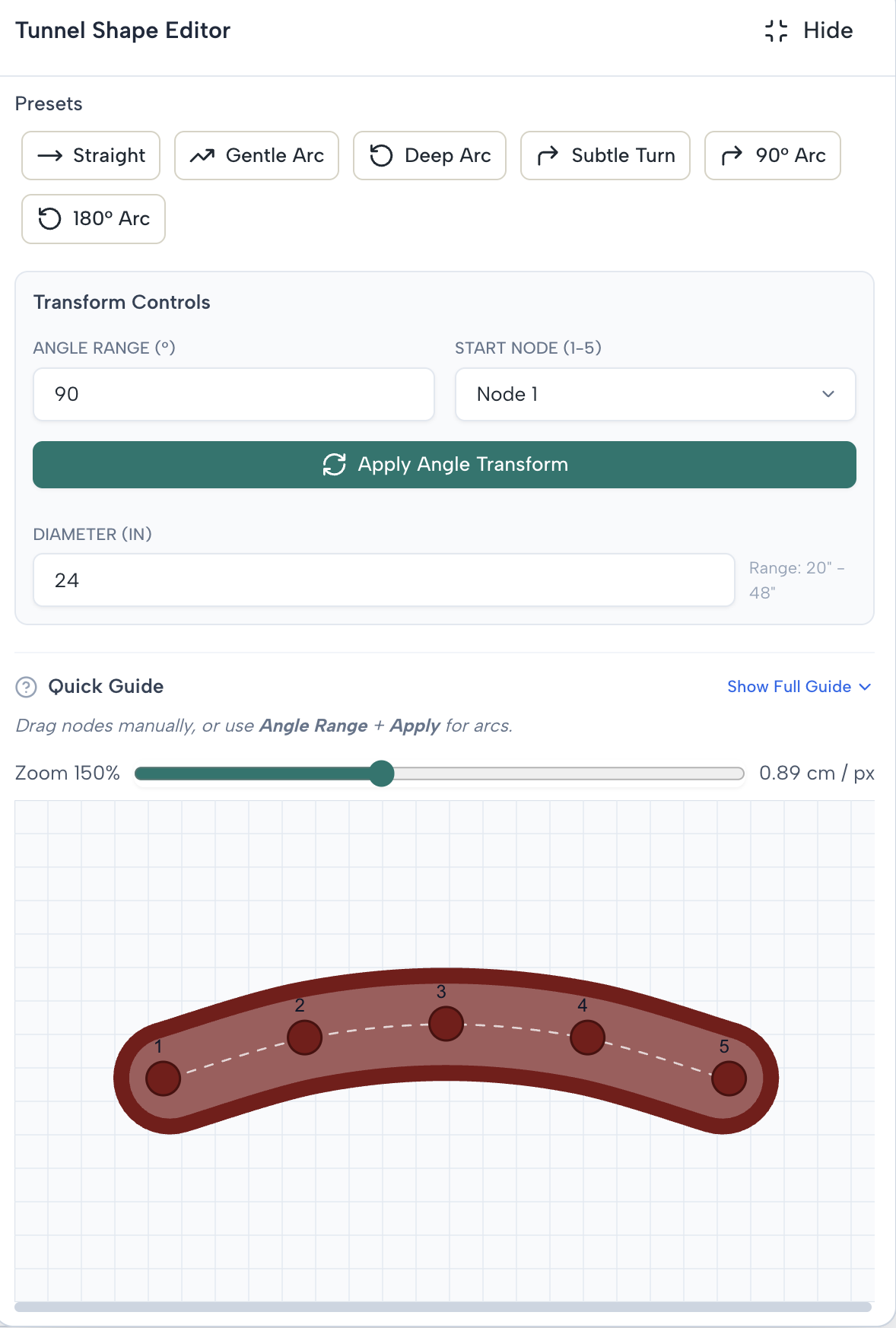
Perfect curves,
every time.
Our curve-segmentation engine allows for millimetre-perfect tunnel designs. Drag, bend, and snap nodes to match any field requirement.
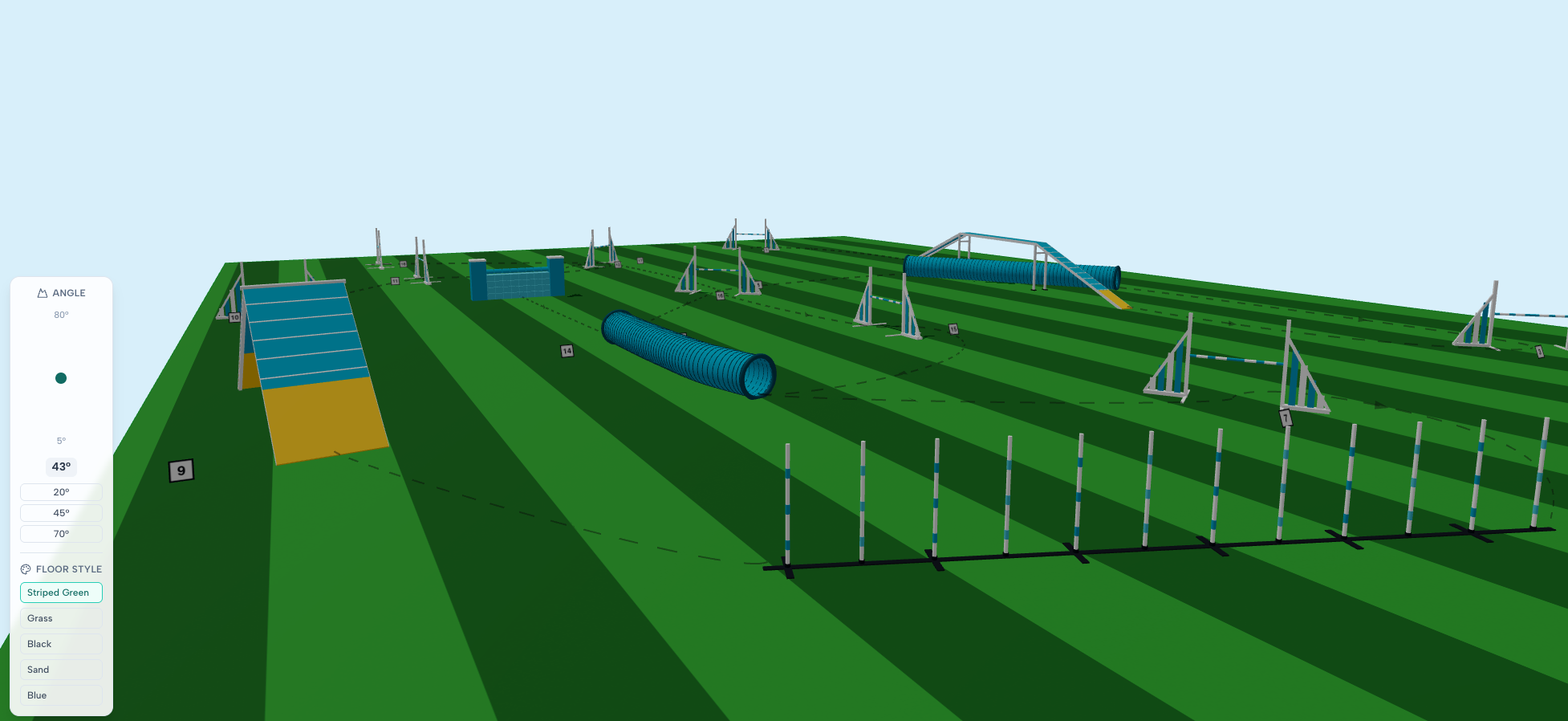
3D Course View
Choose 3D beside Edit and Preview above the canvas to inspect solid equipment and adjust the camera. Choose Edit to return to course editing or Preview for a read-only 2D view.
Annotations
Markup your course with custom paths, judge areas, and speaker placement notes.
Versions & Snapshots
Automatic revision history plus named snapshots you keep on purpose — revert to any state or bookmark a design before a big change.
PNG And PDF Exports
Preview your map, adjust its contents and output settings, then download a PNG for screens or a PDF for print.
Pro Tip: Mastering Selection
Need to move a group of obstacles? Hold Shift and drag a selection box around them. You can then move, rotate, or align them as a single group.